Demystifying Web — Emulate browser
Have you ever wondered what’s the inner workings of the internet? I will write a series of stories on how the web works from the software engineer’s perspective.
The internet is simply a very large network of computers sending and receiving messages. A typical interaction is initiated by a client (for example, you type in techhara.me on the browser) sending a message to the server with the address (in this case, techhara.me). With some complicated chains of communications between computers that we do not need to worry about, the message reaches the destination server, and the server responds to the client with its response in the form of a message, which is then interpreted by the client (i.e., the browser decodes the response and display the website).
OK, let’s emulate our browser and communicate with the server directly in the simplest way possible. Obviously, what the browser does is very complex and we can’t possibly emulate the entirety of it, but we can start from sending requests. We will use curl, so if you don’t have it, go ahead and install it. Let’s send a message to techhara.me as if we want to open up the page. We will save the server response into an html page.
$ curl -X GET "https://techhara.me" > techhara.html
You can open up the techhara.html file with a text editor to inspect what it is — you can tell it is an html file from its <html> tags. This is because in order to successfully load a modern webpage, the browser needs to send and receive a whole lot more messages. With browser developer tool (such as Chrome, Firefox), we can inspect the network activities when opening a page:
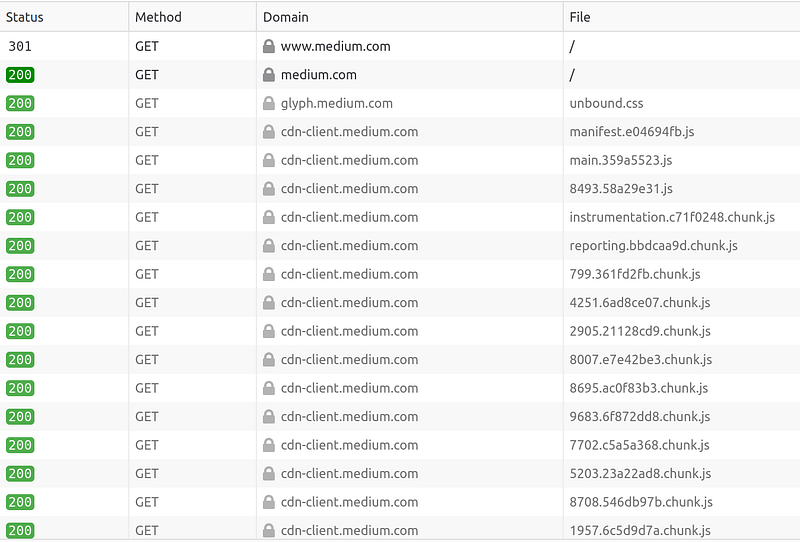
As you see here, there are multiple messages needed to fully render the page, of which our curl command has done just the one. Let’s try google.com. We can again send a request to the server.
$ curl -XGET https://google.com
<HTML><HEAD><meta http-equiv="content-type" content="text/html;charset=utf-8">
<TITLE>301 Moved</TITLE></HEAD><BODY>
<H1>301 Moved</H1>
The document has moved
<A HREF="https://www.google.com/">here</A>.
</BODY></HTML>
The server’s response to https://google.com is a very short message; it is asking to re-submit the request to https://www.google.com instead. Let’s do as the server as asked — this is exactly what our web browser would do when we type in https://google.com in the address bar.
$ curl -XGET https://www.google.com > google.html
Now if we open up google.html page with a web browser, you will see essentially the google page, except probably missing some images. Below is what I see.
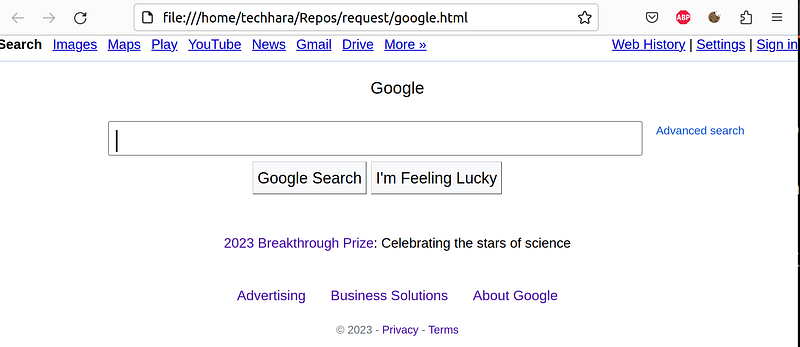
Let’s try to get the main image. In the google.html file, I see this image tag
<img alt="Google" height="92" src="/images/branding/googlelogo/1x/googlelogo_white_background_color_272x92dp.png" style="padding:28px 0 14px" width="272" id="hplogo">
Let’s request this image from the server as if the browser would, and save it as google.png file.
$ curl -X https://www.google.com/images/branding/googlelogo/1x/googlelogo_white_background_color_272x92dp.png > google.png
Now, we can open up the google.png file and see that this is indeed the google logo that would typically display on the google’s main page

So, we have successfully communicated with the servers on the internet as if a web browser would do. By now hopefully, you understand web browser’s responsibility in a nutshell is to
- request to a webpage by its address
- decode the html and request additional necessary resources
- using all the resources together, render the webpage and display to the user
- handle user input and take actions accordingly — which will likely result in additional requests